tmux Is Not a Shortcut Cheat Sheet. It Is a Terminal Workflow.
Many people first meet tmux through a shortcut list: Ctrl-b c creates a window, Ctrl-b % splits the screen, Ctrl-b d detaches. They memorize it a few times, still find tmux awkward, and eventually go back to terminal tabs.
That reaction actually points to the real issue: the value of tmux has never been the key bindings themselves. The value is that it gives you a terminal workspace that can persist over time.
The main shift is simple: stop treating tmux as a screen-splitting trick and start treating it as a persistent command-line workspace. Sessions keep work alive, windows separate responsibilities, and panes give you short-range side-by-side views when you actually need them. Once those layers are clear, tmux becomes much easier to use well.
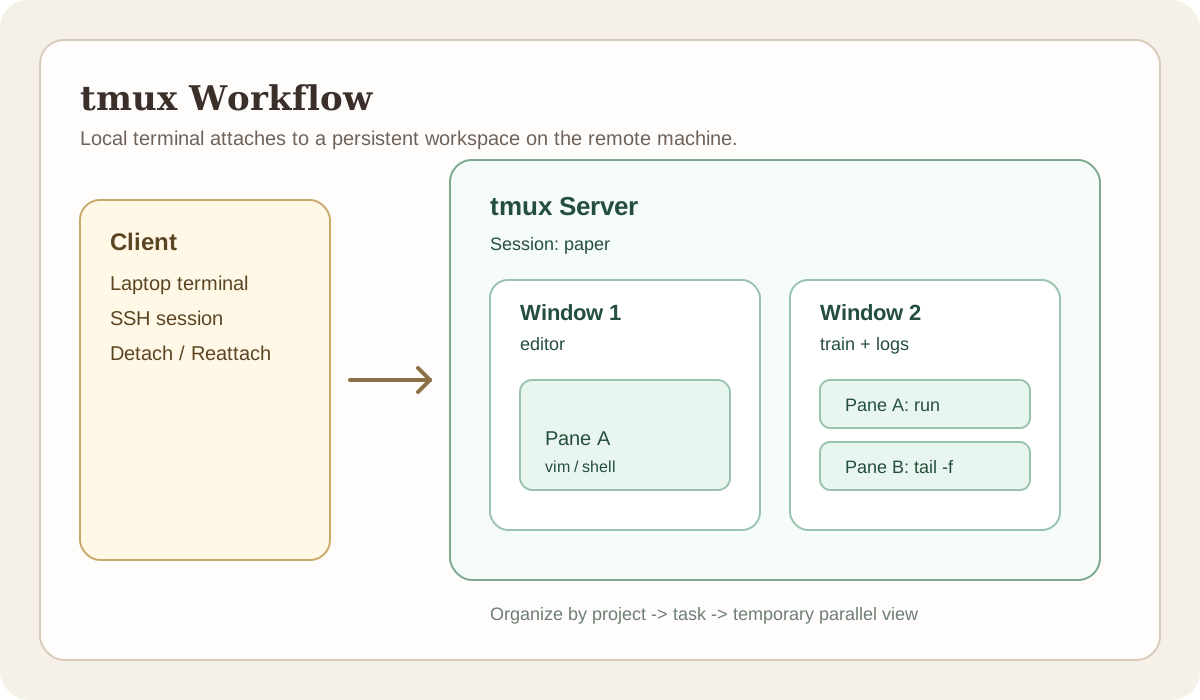
Figure 1. Once you treat tmux as a “persistent workspace,” the relationship between session, window, and pane becomes much clearer.
What problem does tmux actually solve?
If you only think of tmux as “split panes inside the terminal,” then no, it does not sound especially worth learning. Modern terminals can already open multiple tabs, and many editors embed terminals too.
The more important value of tmux is in three other areas:
- Sessions persist. If you are training a model, compiling code, or watching logs on a remote machine, an SSH disconnect does not kill the programs inside
tmux. - Workspaces are recoverable. If you opened three windows in the lab today, you can reconnect to the same server from home tomorrow and return to the same layout.
- Tasks stay organized. Editing, serving, logs, and monitoring for one project can live inside one session instead of being scattered across a dozen terminal tabs.
That is also why tmux, nohup, and terminal tabs are not interchangeable:
| Tool | Best at | Not good at |
|---|---|---|
| Terminal tabs | Quickly opening a few temporary shells | Reconnects, persistent organization |
nohup | Sending a job to the background for a long run | Interactive inspection and returning to state |
tmux | Interactive, long-lived, recoverable command-line workflows | Daemon management and system-level service orchestration |
In one sentence:
nohupis closer to “throw the job over there”;tmuxis closer to “keep the workbench exactly where I left it.”
Get the mental model straight first: session, window, pane
The part of tmux that scares people off is that you immediately see three abstractions at once: session, window, and pane. In practice, you only need the big-to-small relationship.
| Layer | Think of it as | Recommended scope |
|---|---|---|
session | One complete workspace | One project, one remote machine, one major task |
window | One themed page inside that workspace | Editing, serving, logs, monitoring |
pane | Side-by-side views inside one theme | Short parallel observation, comparison, debugging |
A stable habit looks like this:
- One project per session
- One responsibility per window
- Use panes only for short-distance parallel work, not as a replacement for every window
When people say their tmux setup feels chaotic, the problem usually is not that tmux is inherently too complex. It is that the three layers got mixed together. A task that should have been its own window is crammed into a pane instead, and the final layout turns into a spider web.
One more official concept matters here: tmux runs a server in the background. What you attach to in your terminal is just a client. The state itself lives in that server, so your session still exists after you disconnect the current terminal. That design is exactly why tmux can preserve state across reconnects.
Source: tmux Getting Started
To get started, you only need a few actions
You do not need to memorize dozens of shortcuts on day one. A small set of common commands and key bindings is enough to build muscle memory.
At the command-line level
tmux new -s work        # Create a session named work
tmux ls                 # List all sessions
tmux attach -t work     # Reattach to work
tmux kill-session -t work
At the interactive level
The default prefix key is Ctrl-b. The combinations below mean “press the prefix first, then press the second key.”
| Keys | Action |
|---|---|
Ctrl-b d | Detach from the current session |
Ctrl-b c | Create a new window |
Ctrl-b , | Rename the current window |
Ctrl-b % | Split left-right |
Ctrl-b " | Split top-bottom |
Ctrl-b o | Move between panes |
Ctrl-b z | Zoom the current pane, then restore it |
Ctrl-b [ | Enter scroll and copy mode |
Ctrl-b ? | Show help |
If you are only trying to start using tmux right now, the real minimum set can be reduced to four moves:
tmux new -s workCtrl-b cCtrl-b %orCtrl-b "Ctrl-b d
Using just those four actions for remote development and reconnect recovery is far more effective than trying to memorize everything at once.
A steadier day-to-day workflow
Here is a workflow that I find much more stable than “open another pane whenever something occurs to me.”
1. Let sessions represent projects or machines
If you are running paper experiments on a remote server, just start with:
tmux new -s paperFrom then on, everything related to that paper on that machine goes back into that session.
2. Let windows represent responsibilities
For example:
editor: writing code or documentsserver: running a service or training joblogs: watching outputshell: miscellaneous commands
Then when you switch, you are switching between responsibilities, not guessing which anonymous terminal is which.
3. Open panes only when you truly need side-by-side observation
Panes are best for cases like these:
- The service runs on the left,
tail -flogs run on the right - You edit a config on the left and restart the process on the right to verify it
- Tests run above while you inspect files or
git diffbelow
Panes are a poor place to hold too much long-term context. Once you are above two or three panes, that usually means the topic should already be split into multiple windows.
4. Default long-running work into tmux
If a command matches any of these conditions, I would start it inside tmux by default:
- It runs for a long time
- You will need to come back and inspect it repeatedly
- It runs on a remote machine
- You are not sure the network will stay stable
This is the point where tmux tends to pay off immediately. Very quickly, you realize the reassuring part is not the split layout. It is the fact that even if the laptop closes, the state of the task is still there.
A minimal configuration that is useful without being excessive
Many tmux configuration files start by dumping in plugins, themes, and a hundred key bindings. I would rather begin with just the small set of options that most affects day-to-day feel.
set -g mouse on
setw -g mode-keys vi
set -g base-index 1
setw -g pane-base-index 1
set -g renumber-windows on
bind r source-file ~/.tmux.conf \; display-message "tmux config reloaded"
Those lines solve the following problems:
mouse on: lets you click panes, drag borders, and scrollmode-keys vi: makes copy and scroll mode feel closer tovimbase-index 1: starts window numbering at1, which many people find more intuitiverenumber-windows on: renumbers windows automatically after one is closedbind r ...: gives you a one-key config reload
There is also a common trap here: ~/.tmux.conf is normally read only once when the tmux server starts. If you edit the file and your changes do not appear, it does not necessarily mean the config is wrong. You may simply not have reloaded it yet. The tmux(1) manual says the config is read when the server first starts, and after that you need source-file to reload it.
Source: tmux(1) manual page
A few very common mistakes
Mistake 1: learning tmux as a shortcut competition
Knowing four or five commands you actually use beats memorizing fifteen you never build into a routine. The barrier in tmux is not memory. It is whether you have a stable workflow.
Mistake 2: opening too many panes
Panes make it easy to believe that “everything on one screen” is automatically more efficient. Past a certain density, though, the switching cost becomes worse, not better. Big tasks belong in separate windows. Panes should be for small side-by-side comparisons.
Mistake 3: not naming sessions and windows
Default names are acceptable in a demo and almost guaranteed to be messy in a real project. You should be able to tell at a glance whether the workspace is paper, deploy, or db-fix, not stare at a row of numbers.
Mistake 4: treating tmux as the answer to every background job
If a task is fully non-interactive and the real problem is service management, then systemd, container orchestration, or a process manager is often the better tool. tmux is best at command-line state that a human needs to keep returning to and interacting with.
A very practical way to start
If you want to begin using tmux today, I would suggest doing exactly one thing:
The next time you SSH into a remote machine, do not start working right away. Run this first:
tmux new -A -s mainThe first time, that command creates main. On later logins, it attaches you back to the same session. The tmux(1) manual page defines new-session -A as “if session already exists, behave like attach-session.”
Then hold yourself to four rules for one week:
- Run every long task inside that session
- When disconnecting, detach instead of leaving jobs in a bare terminal
- Give windows real names
- Open panes only when you genuinely need side-by-side observation
After a week, if you find yourself instinctively typing tmux attach -t main to return to your state, then what you learned was not just a tool. You learned a steadier way to work in the command line.
Closing thought
In the end, tmux is not a bag of advanced terminal tricks. It is a tool for managing work rhythm.
It turns command-line work that is otherwise fragile, interruptible, and scattered into a long-lived space that you can pause, resume, switch, and organize. The thing worth mastering is not the clever shortcut. It is how that space should be structured.
Once you adopt that view, tmux stops being “the tool that saves me once in a while” and becomes quiet infrastructure you rely on every day.